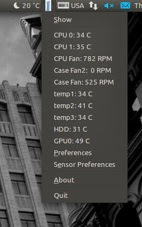
Q. How do I read CPU core temperature data from a shell prompt under Linux operating system? How do I monitor my cpu hardware?
A. You can use Linux hardware monitoring tool such as lm_sensor. This tool provides some essential tools for monitoring the hardware health of Linux systems containing hardware health monitoring hardware such as the LM78, and LM75.
A. You can use Linux hardware monitoring tool such as lm_sensor. This tool provides some essential tools for monitoring the hardware health of Linux systems containing hardware health monitoring hardware such as the LM78, and LM75.
This tool use the System Management Bus (SMBus or SMB), which is a simple two-wire bus, derived from I²C and used for communication with low-bandwidth devices on a motherboard, especially power related chips such as a laptop's rechargeable battery subsystem. Other devices might include temperature, fan, or voltage sensors; and lid switches. PCI add-in cards may connect to an SMBus segment.
Install lm_sensors / lm-sensors package
This package may or may not be installed. Type the following command to install software on CentOS / RHEL / Fedora Linux:
If you are using Debian / Ubuntu Linux, enter:
# yum install lm_sensorsIf you are using Debian / Ubuntu Linux, enter:
$ sudo apt-get install lm-sensorsConfigure lm_sensors
To detect hardware monitoring chips, type the following command as the root user:
OR
Sample output:
# sensors-detectOR
$ sudo sensors-detectSample output:
# sensors-detect revision 4609 (2007-07-14 09:28:39 -0700)
This program will help you determine which kernel modules you need
to load to use lm_sensors most effectively. It is generally safe
and recommended to accept the default answers to all questions,
unless you know what you're doing.
We can start with probing for (PCI) I2C or SMBus adapters.
Do you want to probe now? (YES/no):
Probing for PCI bus adapters...
Use driver `i2c-i801' for device 0000:00:1f.3: Intel 82801G ICH7
We will now try to load each adapter module in turn.
Module `i2c-i801' already loaded.
If you have undetectable or unsupported adapters, you can have them
scanned by manually loading the modules before running this script.
To continue, we need module `i2c-dev' to be loaded.
Do you want to load `i2c-dev' now? (YES/no):
Module loaded successfully.
We are now going to do the I2C/SMBus adapter probings. Some chips may
be double detected; we choose the one with the highest confidence
value in that case.
If you found that the adapter hung after probing a certain address,
you can specify that address to remain unprobed.
Next adapter: saa7133[0] (i2c-0)
Do you want to scan it? (YES/no/selectively):
Client found at address 0x47
Handled by driver `ir-kbd-i2c' (already loaded), chip type `Pinnacle PCTV'
    (note: this is probably NOT a sensor chip!)
Client found at address 0x4b
Handled by driver `tuner' (already loaded), chip type `tda8290+75a'
    (note: this is probably NOT a sensor chip!)
Client found at address 0x50
Probing for `Analog Devices ADM1033'...                     No
Probing for `Analog Devices ADM1034'...                     No
Probing for `SPD EEPROM'...                                 No
Probing for `EDID EEPROM'...                                No
Next adapter: SMBus I801 adapter at 4000 (i2c-1)
Do you want to scan it? (YES/no/selectively):
Client found at address 0x2e
Probing for `Myson MTP008'...                               No
Probing for `National Semiconductor LM78'...                No
Probing for `National Semiconductor LM78-J'...              No
Probing for `National Semiconductor LM79'...                No
Probing for `National Semiconductor LM80'...                No
Probing for `National Semiconductor LM85 or LM96000'...     No
Probing for `Analog Devices ADM1027, ADT7460 or ADT7463'... No
Probing for `SMSC EMC6D100, EMC6D101 or EMC6D102'...        No
Probing for `Analog Devices ADT7462'...                     No
Probing for `Analog Devices ADT7467 or ADT7468'...          No
Probing for `Analog Devices ADT7470'...                     No
Probing for `Analog Devices ADT7473'...                     No
Probing for `Analog Devices ADT7475'...                     No
Probing for `Analog Devices ADT7476'...                     No
Probing for `Andigilog aSC7611'...                          No
Probing for `Andigilog aSC7621'...                          Success!
    (confidence 5, driver `to-be-written')
Probing for `National Semiconductor LM87'...                No
Probing for `National Semiconductor LM93'...                No
Probing for `Winbond W83781D'...                            No
Probing for `Winbond W83782D'...                            No
Probing for `Winbond W83792D'...                            No
Probing for `Winbond W83793R/G'...                          No
Probing for `Winbond W83791SD'...                           No
Probing for `Winbond W83627HF'...                           No
Probing for `Winbond W83627EHF'...                          No
Probing for `Winbond W83627DHG'...                          No
Probing for `Asus AS99127F (rev.1)'...                      No
Probing for `Asus AS99127F (rev.2)'...                      No
Probing for `Asus ASB100 Bach'...                           No
Probing for `Winbond W83L785TS-S'...                        No
Probing for `Analog Devices ADM9240'...                     No
Probing for `Dallas Semiconductor DS1780'...                No
Probing for `National Semiconductor LM81'...                No
Probing for `Analog Devices ADM1026'...                     No
Probing for `Analog Devices ADM1025'...                     No
Probing for `Analog Devices ADM1024'...                     No
Probing for `Analog Devices ADM1029'...                     No
Probing for `Analog Devices ADM1030'...                     No
Probing for `Analog Devices ADM1031'...                     No
Probing for `Analog Devices ADM1022'...                     No
Probing for `Texas Instruments THMC50'...                   No
Probing for `Analog Devices ADM1028'...                     No
Probing for `ITE IT8712F'...                                No
Probing for `SMSC DME1737'...                               No
Probing for `Fintek F75373S/SG'...                          No
Probing for `Fintek F75375S/SP'...                          No
Probing for `Fintek F75387SG/RG'...                         No
Probing for `Winbond W83791D'...                            No
Client found at address 0x44
Probing for `Maxim MAX6633/MAX6634/MAX6635'...              No
Client found at address 0x50
Probing for `Analog Devices ADM1033'...                     No
Probing for `Analog Devices ADM1034'...                     No
Probing for `SPD EEPROM'...                                 Yes
    (confidence 8, not a hardware monitoring chip)
Probing for `EDID EEPROM'...                                No
Some chips are also accessible through the ISA I/O ports. We have to
write to arbitrary I/O ports to probe them. This is usually safe though.
Yes, you do have ISA I/O ports even if you do not have any ISA slots!
Do you want to scan the ISA I/O ports? (YES/no):
Probing for `National Semiconductor LM78' at 0x290...       No
Probing for `National Semiconductor LM78-J' at 0x290...     No
Probing for `National Semiconductor LM79' at 0x290...       No
Probing for `Winbond W83781D' at 0x290...                   No
Probing for `Winbond W83782D' at 0x290...                   No
Probing for `Silicon Integrated Systems SIS5595'...         No
Probing for `VIA VT82C686 Integrated Sensors'...            No
Probing for `VIA VT8231 Integrated Sensors'...              No
Probing for `IPMI BMC KCS' at 0xca0...                      No
Probing for `IPMI BMC SMIC' at 0xca8...                     No
Some Super I/O chips may also contain sensors. We have to write to
standard I/O ports to probe them. This is usually safe.
Do you want to scan for Super I/O sensors? (YES/no):
Probing for Super-I/O at 0x2e/0x2f
Trying family `National Semiconductor'...                   No
Trying family `SMSC'...                                     Yes
Found `SMSC LPC47M182 Super IO Fan Sensors'
    (but not activated)
Probing for Super-I/O at 0x4e/0x4f
Trying family `National Semiconductor'...                   No
Trying family `SMSC'...                                     No
Trying family `VIA/Winbond/Fintek'...                       No
Trying family `ITE'...                                      No
Some CPUs or memory controllers may also contain embedded sensors.
Do you want to scan for them? (YES/no):
AMD K8 thermal sensors...                                   No
Intel Core family thermal sensor...                         Success!
    (driver `coretemp')
Intel AMB FB-DIMM thermal sensor...                         No
Now follows a summary of the probes I have just done.
Just press ENTER to continue:
Driver `to-be-written' (should be inserted):
  Detects correctly:
  * Bus `SMBus I801 adapter at 4000'
    Busdriver `i2c-i801', I2C address 0x2e
    Chip `Andigilog aSC7621' (confidence: 5)
Driver `coretemp' (should be inserted):
  Detects correctly:
  * Chip `Intel Core family thermal sensor' (confidence: 9)
I will now generate the commands needed to load the required modules.
Just press ENTER to continue:
To make the sensors modules behave correctly, add these lines to
/etc/modules:
#----cut here----
# I2C adapter drivers
i2c-i801
# Chip drivers
# no driver for Andigilog aSC7621 yet
coretemp
#----cut here----
Do you want to add these lines to /etc/modules automatically? (yes/NO)
This is an interactive program that will walk you through the process of scanning your system for various hardware monitoring chips, or sensors, supported by libsensors, or more generally by the lm_sensors tool suite. For my system coretemp and i2c-i801 driver need to loaded in order to see sensors data. Type 'YES" to update /etc/modules files. Now you need to reboot the box. Alternatively, you can load all drivers using modprobe command
# modprobe coretemp
# modprobe i2c-i801
How do I read sensors chip data such as temperature?
Type the following command at shell prompt:
Sample output:
$ sensorsSample output:
coretemp-isa-0000
Adapter: ISA adapter
Core 0:      +59°C  (high =  +100°C)
coretemp-isa-0001
Adapter: ISA adapter
Core 1:      +59°C  (high =  +100°C)
coretemp-isa-0002
Adapter: ISA adapter
Core 2:      +55°C  (high =  +100°C)
coretemp-isa-0003
Adapter: ISA adapter
Core 3:      +56°C  (high =  +100°C)
Here is another output from Intel xeon server box:
w83627hf-i2c-0-2d
Adapter: SMBus I801 adapter at 1100
VCore 1:   +4.08 V  (min =  +1.34 V, max =  +1.49 V)       ALARM
VCore 2:   +4.08 V  (min =  +1.34 V, max =  +1.49 V)       ALARM
+3.3V:     +4.08 V  (min =  +3.14 V, max =  +3.46 V)       ALARM
+5V:       +5.11 V  (min =  +4.73 V, max =  +5.24 V)
+12V:     +11.73 V  (min = +10.82 V, max = +13.19 V)
-12V:      +1.21 V  (min = -13.18 V, max = -10.88 V)       ALARM
-5V:       +2.24 V  (min =  -5.25 V, max =  -4.75 V)       ALARM
V5SB:      +5.51 V  (min =  +4.73 V, max =  +5.24 V)       ALARM
VBat:      +0.54 V  (min =  +2.40 V, max =  +3.60 V)       ALARM
fan1:        0 RPM  (min =    0 RPM, div = 2)
fan2:        0 RPM  (min = 2689 RPM, div = 2)              ALARM
fan3:        0 RPM  (min = 6553 RPM, div = 2)              ALARM
temp1:       -48°C  (high =    -1°C, hyst =   -25°C)   sensor = thermistor
temp2:     -48.0°C  (high =   +80°C, hyst =   +75°C)   sensor = thermistor
temp3:     -48.0°C  (high =   +80°C, hyst =   +75°C)   sensor = thermistor
vid:      +1.419 V  (VRM Version 11.0)
alarms:
beep_enable:
          Sound alarm enabled
w83627hf-isa-0290
Adapter: ISA adapter
VCore 1:   +4.08 V  (min =  +1.34 V, max =  +1.49 V)       ALARM
VCore 2:   +4.08 V  (min =  +1.34 V, max =  +1.49 V)       ALARM
+3.3V:     +4.08 V  (min =  +3.14 V, max =  +3.46 V)       ALARM
+5V:       +5.11 V  (min =  +4.73 V, max =  +5.24 V)
+12V:     +11.73 V  (min = +10.82 V, max = +13.19 V)
-12V:      +1.29 V  (min = -13.18 V, max = -10.88 V)       ALARM
-5V:       +2.24 V  (min =  -5.25 V, max =  -4.75 V)       ALARM
V5SB:      +5.48 V  (min =  +4.73 V, max =  +5.24 V)       ALARM
VBat:      +0.54 V  (min =  +2.40 V, max =  +3.60 V)       ALARM
fan1:        0 RPM  (min =    0 RPM, div = 2)
fan2:        0 RPM  (min = 2689 RPM, div = 2)              ALARM
fan3:        0 RPM  (min = 6553 RPM, div = 2)              ALARM
temp1:       -48°C  (high =    -1°C, hyst =   -25°C)   sensor = thermistor
temp2:     -48.0°C  (high =   +80°C, hyst =   +75°C)   sensor = thermistor
temp3:     -48.0°C  (high =   +80°C, hyst =   +75°C)   sensor = thermistor
vid:      +1.419 V  (VRM Version 11.0)
alarms:
beep_enable:
          Sound alarm enabled